Approving requests to join your team
When someone asks to join your organisation, you decide. Here is where the request appears, what Approve and Decline do, and what to do next.
3 min read

Sometimes a new person signs up, types the name of your organisation, and asks to join. When that happens, a Join requests box appears at the top of your Team dashboard so you can say yes or no. Nobody gets access to your team until you do.
This is for organisation admins. Team Leaders don't see the box.
Why you might get a request
When someone signs up, Good Practice Hub looks at the organisation name they type and suggests existing organisations that look similar. If their work email matches yours, they can join straight away. If it doesn't (a personal email, or a different domain), they can only ask, and that's the request you'll see.
It stops your team ending up split across two organisations, which makes your reports incomplete.
Approve or decline
- Open your Team dashboard. If anyone is waiting, an amber Join requests box sits at the top.
- Each person is listed with their name, email and how long ago they asked.
- Check you know who they are.
- Click Approve to add them to your team, or Decline.
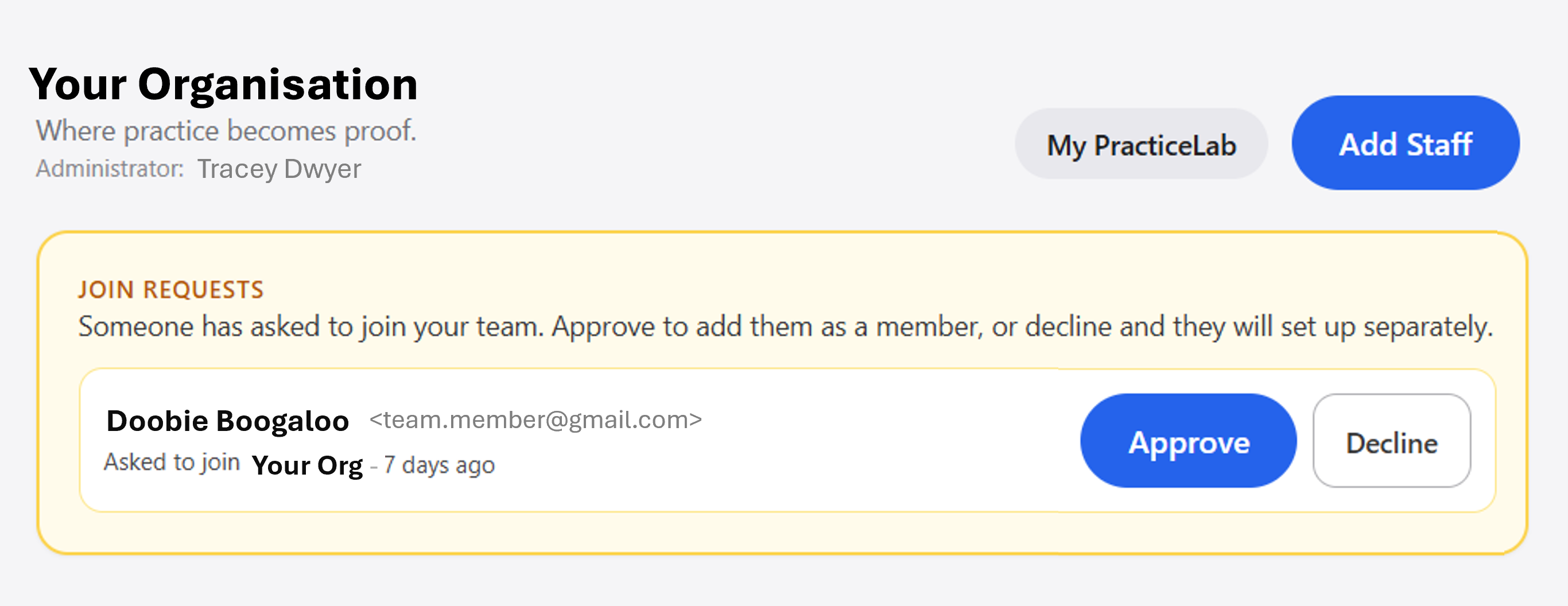
If you approve: they're added as a member and can use your team's features straight away. They're emailed to let them know.
If you decline: the request is removed and they're emailed. They carry on and set up separately, and can ask again later if it was a mistake.
You'll usually get an email when a request comes in too, so you don't need to keep checking the dashboard.
While it's waiting
Until you decide, the person shows in your staff table with the status Awaiting approval, and they have no access to your team's features. That's different from Invited, which means you added them and they haven't signed in yet.
After you approve
Approving puts someone in your team. It doesn't do the rest for you, so now you can:
- Set their role in the staff table
- Switch on their Pro seat, if you're on PracticeLab Pro and have a seat free
- Put them in a team, if you use Teams
- Assign them practice
Common gotchas
- Don't recognise the name? Decline. It's better to ask a colleague than to let a stranger into your team's reports.
- A colleague says they requested but you can't see it. Check you're looking at the right organisation if you belong to more than one (the switcher is in the header). Team Leaders can't see requests, so ask an admin.
- They used a personal email. That's the usual reason a colleague has to ask rather than join straight away. Approving is fine if you know them.
- You declined by mistake. Ask them to request again, or add them yourself with Add Staff.