Downloading your evidence for your funder (PRO PLAN)
Your Team Report is your one-file answer when a funder asks about your team's practice. On PRO, it covers the induction plus whatever you've assigned. Here's how to pull it.
3 min read
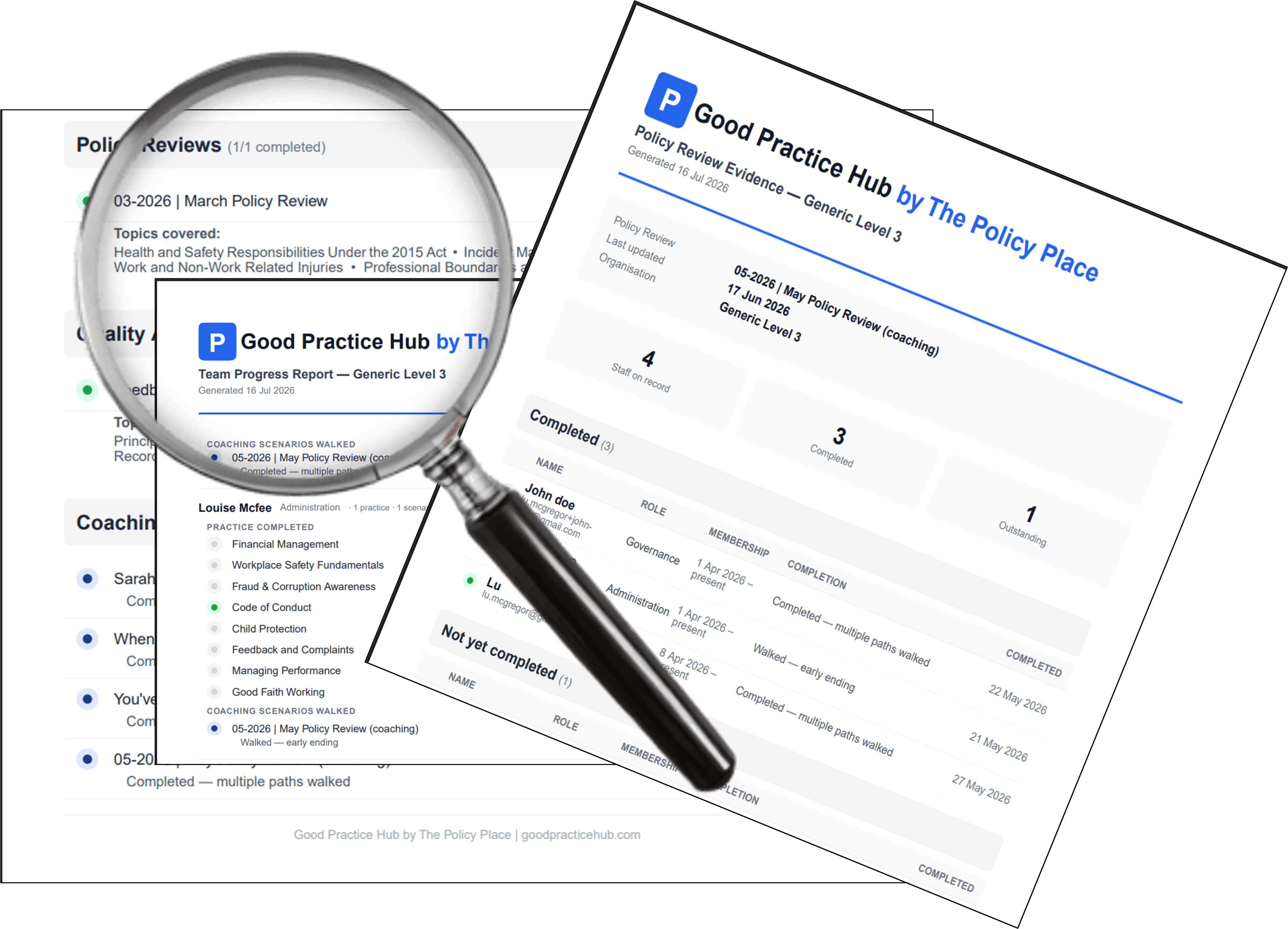
When a funder asks about your team's practice, the Team Report PDF is your one-file answer. On Pro, it covers your team's StartSmart induction and everything you've assigned them — no spreadsheets, no chasing. You also get rich information on how well your team is going in your PRO reports.
When to use it
- Ahead of an annual accreditation audit
- For funder acquittal reports
- Any time someone asks "how do you know your team's up to date?"
- When onboarding a new Board chair who wants to see the picture
You can pull it as many times as you need — it's always current to the moment you download.
Step 1 — Open the Team dashboard
Click Team in the header. If you don't see it, you're either not signed in as an org admin, or you're currently acting as a personal account — check your avatar dropdown to switch.

Step 2 — Click Download Team Report
Look for the Download Team Report button on the right, above the staff table.

Step 3 — Download
The PDF generates in a second or two and downloads to your usual downloads folder. Designed to print on A4 or attach straight to an email.
What's in the Report
Each row shows one person and includes:
- Their name and role
- Their StartSmart induction quizzes — the ones relevant to their role, filtered to your organisation's jurisdiction
- What you assigned them — any custom practice you have assigned to them or picked for them at induction
- Their practice scores and date of completion
- Any coaching scenarios they've walked through, including their path (evidence of applied practice)
- Any assignments where they're on-hold or overdue
At the top: your organisation name, the date the report was generated, and a totals summary.
What's NOT in the Report — and how to get it if you need it
The Team Report shows what your organisation required. It doesn't show extra practice your PRO plan staff member might have completed on their own — for example:
- Additional quizzes from the full Pro library they explored beyond assignments
- Free previews they tried before joining your team
- Practice they did with a previous employer's team
That extra practice sits in their personal ProofKit — a PDF only they can download, because it's their evidence to share.
Why the split matters: the Team Report provides what your organisation required. The ProofKit provides what an individual has done. Two different questions, two different documents. Most funder / accreditation reviews only need the Team Report; some situations may (senior role interviews) want both.
If you need to see the fuller picture for a specific staff member, ask them to sign in to their PracticeLab dashboard, click Download Your ProofKit in the quick actions bar, and email you the PDF, or click the ProofKit link and share via email. Takes them about 30 seconds.
What auditors love about the Team Report
- Every row is dated
- Every score verifiable back to the specific quiz version
- Regenerating gives the same numbers
- Coaching scenarios show applied practice, not just knowledge recall
- Custom assignments show your organisation's specific ongoing practice commitments, not just baseline induction
After you download
- Attach it to your funder report or upload to your accreditation portal as-is
- Print and file with your quality management docs
- Send it to your Board chair before an AGM
- Save it in your audit folder with the date in the filename
Common gotchas
"I can't see the Download Team Report button." You need to be on the Team Dashboard (`/org/dashboard`), not your personal PracticeLab. You need to be an Admin for the organisation to access the Team Dashboard.
"The report shows fewer people than I invited." Only people who've signed up and claimed their invite appear. Anyone still "invited but not started" isn't on it yet.
"A staff member's row is empty." Check whether they've set their role and have either an induction or an assignment set. If it shows a "Role not set" flag, ask them to update their profile.