Inviting your first team
The one step that turns your subscription into a team habit. Here's how to send those first invites, pick roles, and set a deadline that nudges without pushing.
5 min read

Your team can't start practising until they're on the platform. This guide walks you through sending the first batch of invites, choosing the right role for each person, and setting a deadline that gives your team the right nudge without being pushy.
Before you start
You'll need:
- Your team's email addresses
- A rough sense of who does what (Governance member, backend Administration, Client facing Services, or Manager/Team Leader). Roles are easy to change later, so no need to overthink it.
- Five minutes
Step 1 — Open the Team dashboard
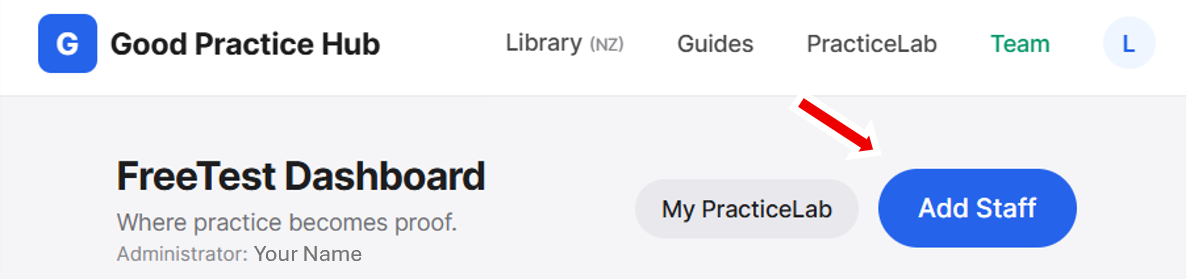
Sign in as your organisation's admin, then click Team in the top-right of the header menu.

You'll land on your Team dashboard — this is where you'll see everyone once they're invited, monitor your people's progress and download evidence when audits roll around.
Step 2 — Add your staff
Click the blue Add Staff button above the table.
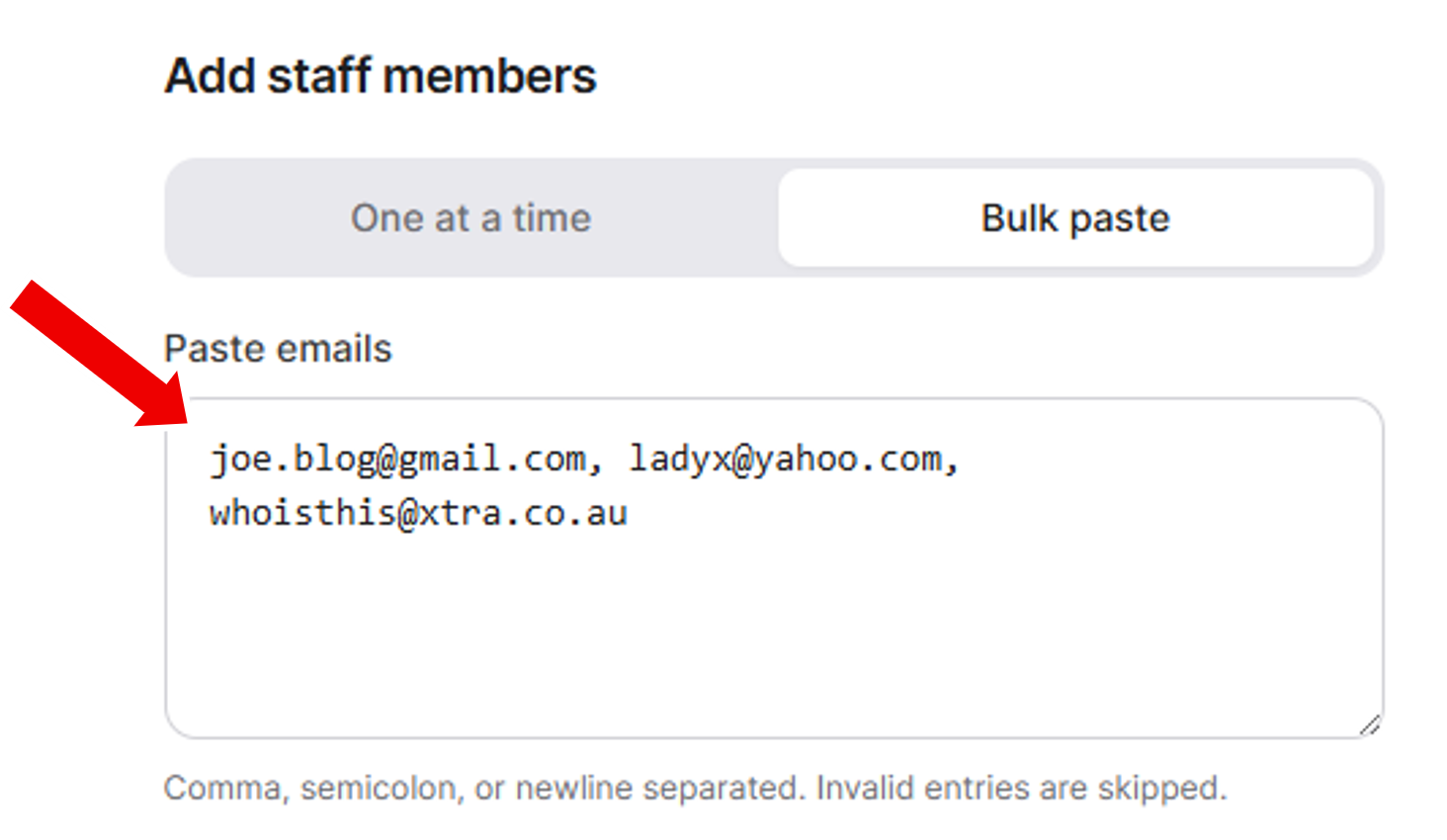
A modal opens with two options: one at a time or paste a list. For your first batch, pasting a list is faster — one email per line, or comma-separated.
Step 3 — Assign roles
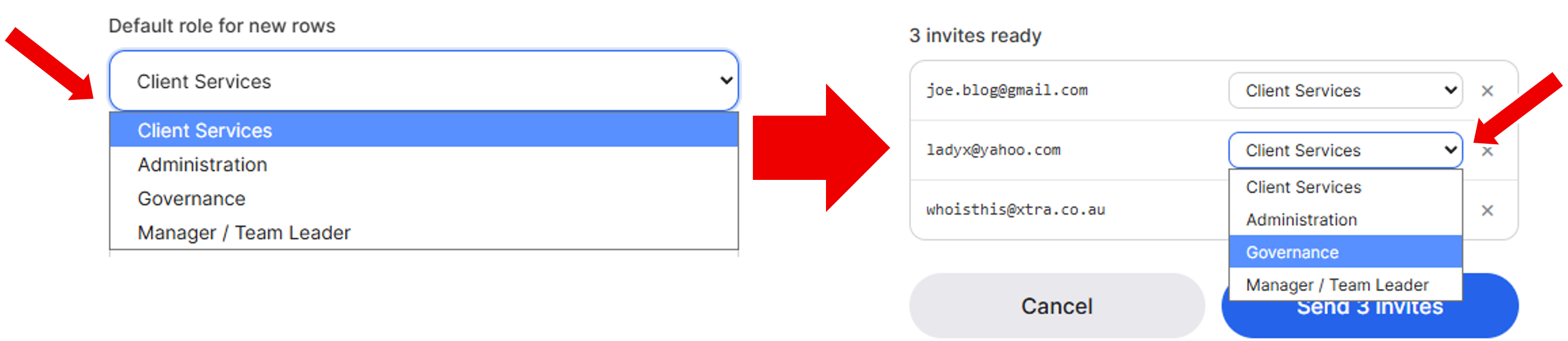
For each person, either pick a role from the dropdown, or pick a default role for the batch and tweak individuals if your batch is mixed:
- Governance — Board members, Trustees
- Administration — Ops, Finance, Reception
- Client Services — Support workers, case workers, frontline staff
- Manager / Team Leader — anyone with people reporting to them
Every role gets a curated StartSmart kit — the free induction bundle for their part of the work. If someone wears multiple hats, pick the one closest to their day job. Cross-role quizzes stay open to everyone, they can change their role later to access other relevant quizzes.
Step 4 — Set the deadline
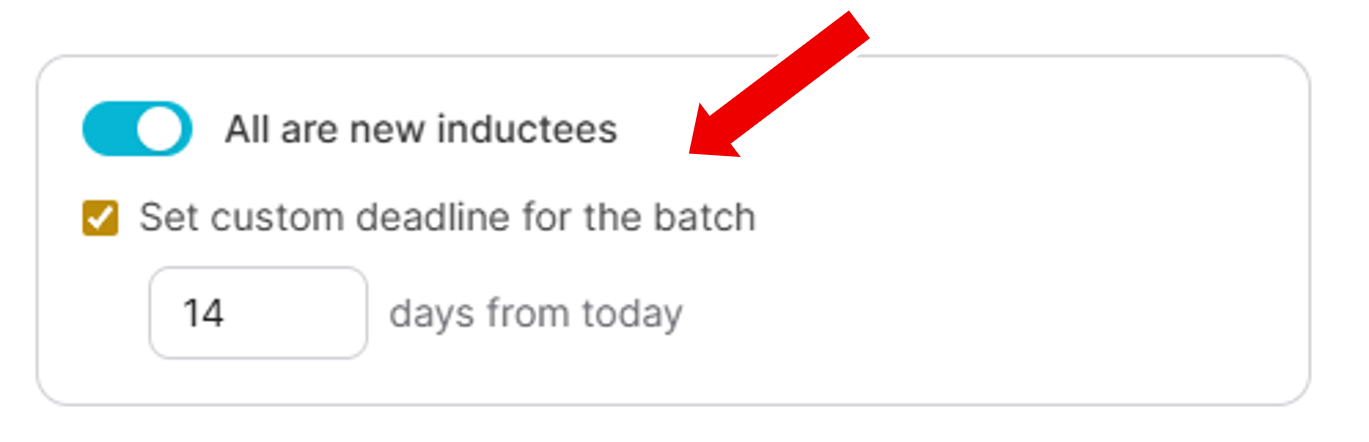
The Deadline field is "days from invite" you expect your people to complete their induction / practice. A good default is between 14-30 days — enough time to fit around real work, tight enough that it doesn't drift.
Step 5 — Send
Click Send invites. Each person gets an email with a link straight into their sign-up flow. No passwords to set — just a one-time code and they're in.
What your team sees
The invite email is warm and short. It names your organisation, tells them what they'll be practising, and gives them a one-click Join button. Most people are set up in under two minutes.
What to do next
- Watch the Team dashboard fill as your people sign up. Names appear with their role as invited, and their induction populates in your dashboard once they've completed sign-up.
- Click the down arrow on any row to expand it — you'll see that person's practice progress, which quizzes they've completed, and when.
- Watch for a "Role not set" amber flag in the Role column. If someone skipped role selection during sign-up, they won't see a StartSmart kit tuned to their work. Ask them to head to their profile settings to sort it out.
- Download the Team Report any time you want the full picture in one PDF — good for weekly check-ins, funder updates, or just seeing the shape of where your team's at.
- Assign further practice. If you're on PracticeLab Pro, you can enhance your induction requirements by selecting a single, or multiple, or all of your people and allocating specific practice to them.
Common gotchas
- Someone says they didn't get the invite. Ask them to check junk folders first. If it truly hasn't landed, click Remove at the end of their row and add them again — a fresh invite email goes out.
- You added the wrong email or picked the wrong role. There's no in-place edit yet. Click Remove at the end of their row, then add them again with the correct details.
- You need to remove someone who's left the team. Same Remove link at the end of their row. Their personal account and any evidence they've built stay intact — you're removing their membership in your organisation, not their access to the platform.