Signing in for the first time
New to Good Practice Hub? Here's how to sign in with the code we email you. No password required.
3 min read
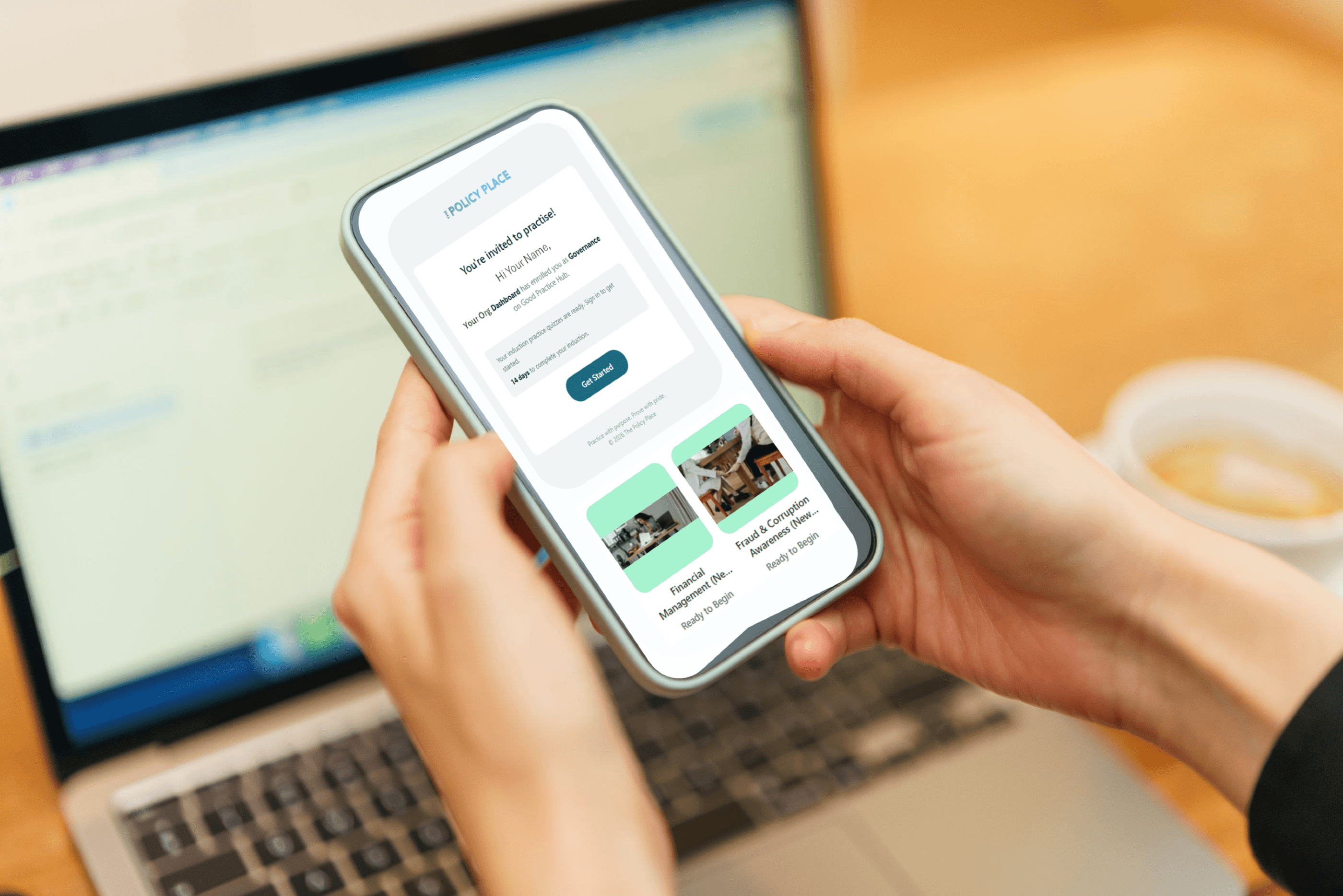
Good Practice Hub uses a one-time code by email instead of a password. It's faster, more secure, and it means one less thing to forget. Here's how it works your first time.
Step 1 — Open your invite email
Look for an email from The Policy Place with the subject "{Your organisation} has invited you to practise on Good Practice Hub". Click the Get Started button.
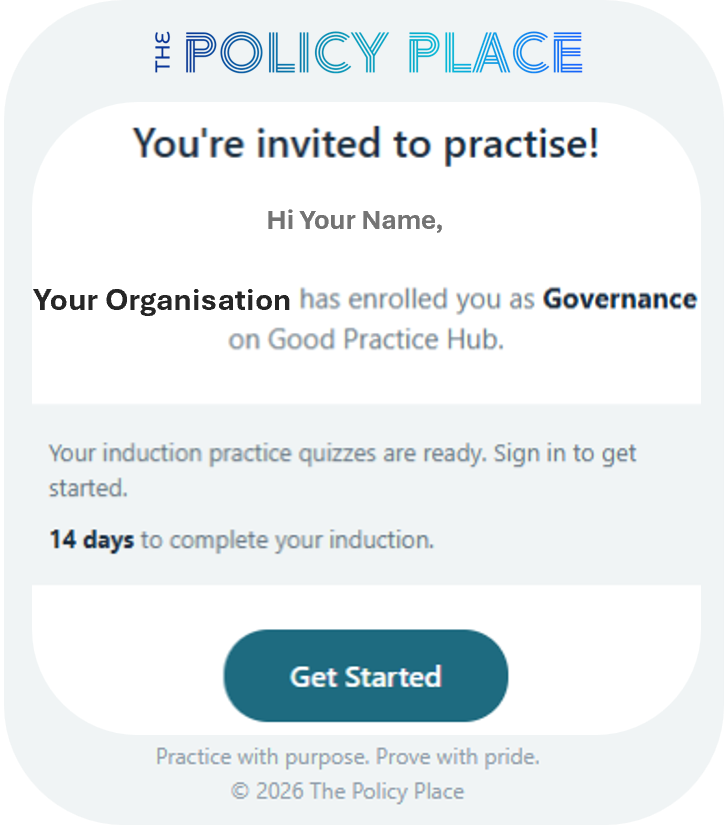
Step 2 — Confirm your your status and email
You'll land on a check to see whether you already have a PracticeLab account. Once confirmed you'll land on the sign-in page with your email already filled in. Click Send code.
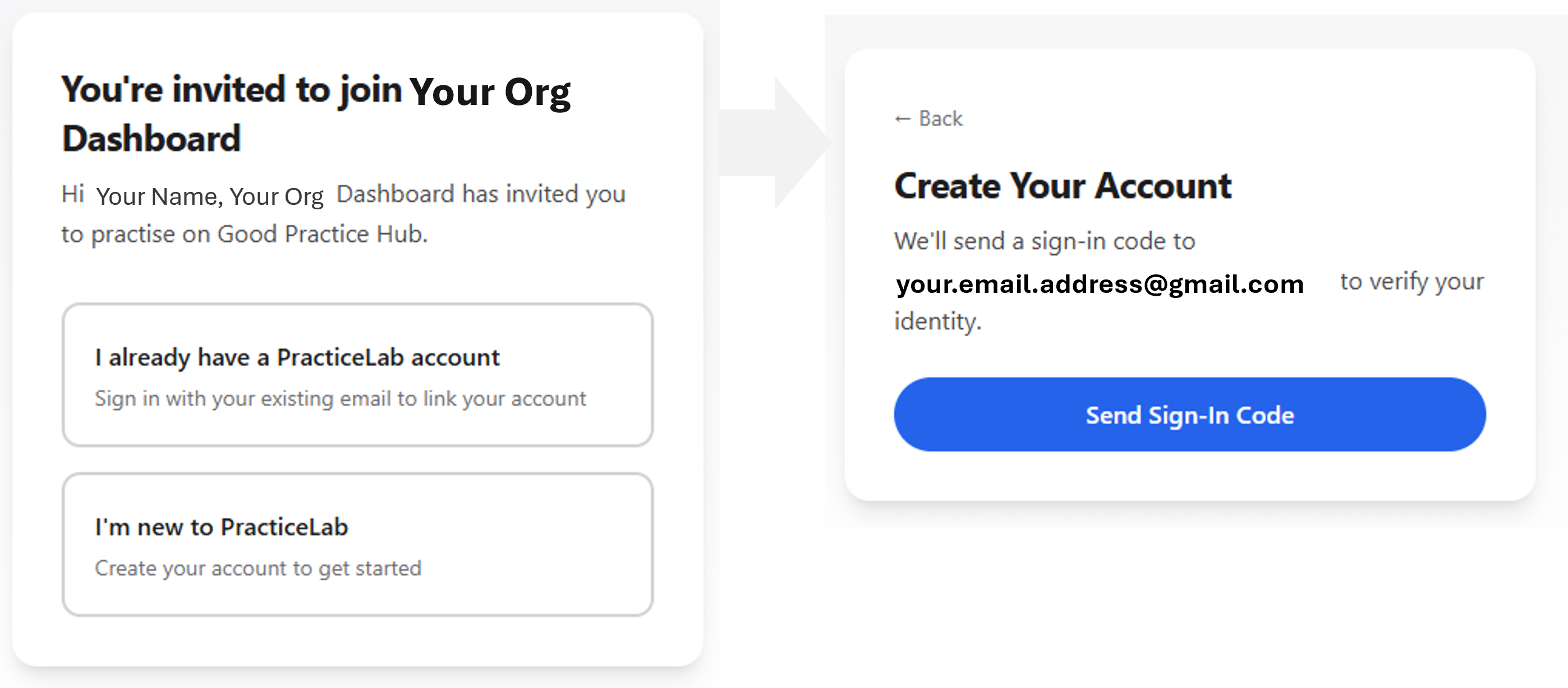
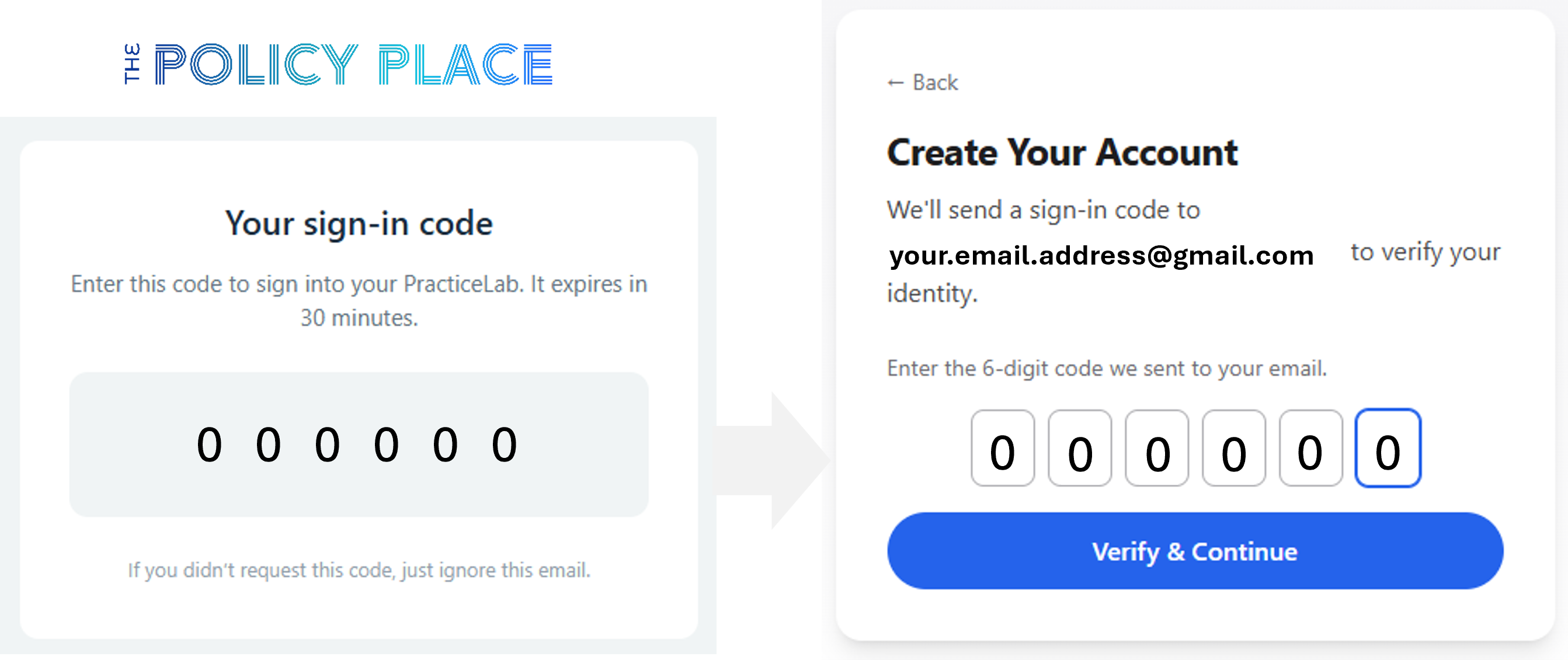
We'll send a 6-digit code to your inbox — it usually arrives in under 30 seconds.
Step 3 — Enter the code
Copy the 6 digits from the email and paste them into the code box on the sign-in page.
Step 4 — Set up your profile
The first time you sign in, you'll be asked for:
- Your name — how it appears in your team's reports
- Your email — enter your primary email, but feel free to add both your personal and work emails to ensure continued access to your PracticeLab if you change work.

- Your organisation's name — to assist linking to your Org Dashboard
- Your role — Governance, Administration, Client Services, or Manager
- Your jurisdiction — NZ or one of the AU states
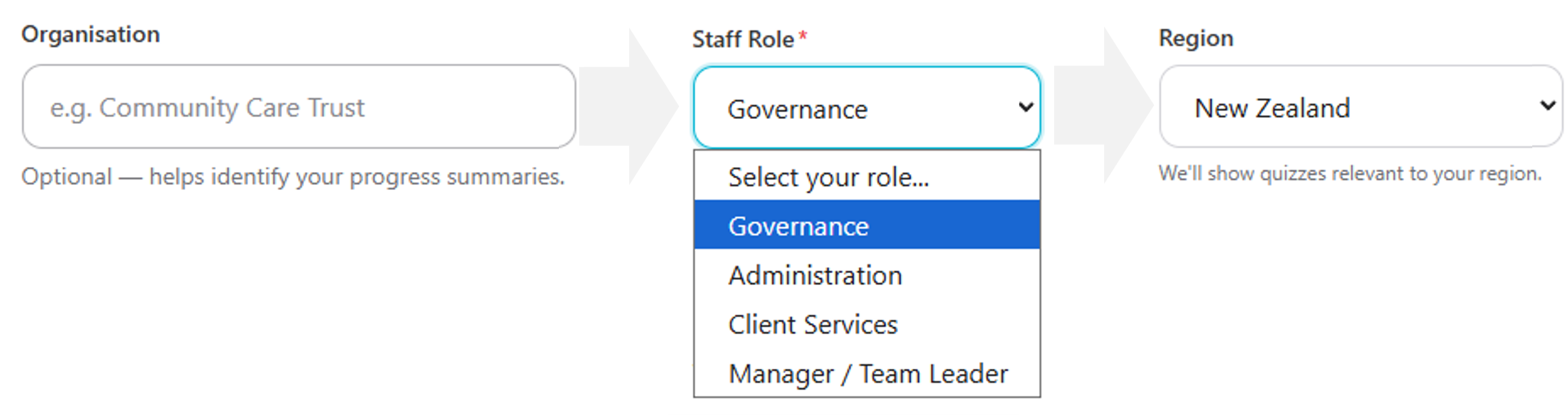
It's important to pick your role so your free StartSmart Induction package loads into your PracticeLab. Choose the role by the work you do most days. If you wear multiple hats, don't stress — cross-role quizzes stay open to everyone - you can change your role later on.
You're in
Once you're set up, you'll land on your PracticeLab dashboard. This is your home base — your StartSmart kit is waiting, and any assignments your team leader has already sent you will be there too.
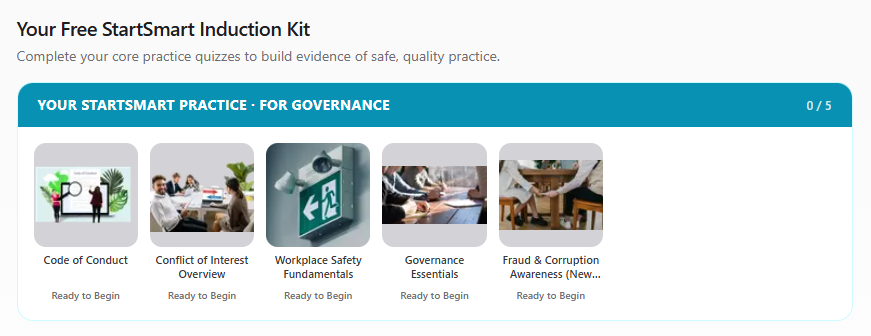
Click on any of your practices to start.
Tip: add it to your phone
If you'll use it on your phone, add it to your home screen so it opens like an app:
- iPhone (Safari) — Share → Add to Home Screen
- Android (Chrome) — Menu (⋮) → Add to Home Screen
Then you can tap the icon to open straight to your dashboard.
The code didn't arrive?
- Wait 30 seconds — it can take a minute at busy times
- Check your junk or spam folder
- Make sure you're looking in the right inbox (the one you were invited on)
- Still nothing? Click Send code again — a fresh code always works
The code says "expired"
Codes are valid for 30 minutes. If you were interrupted and came back later, just request a new code — takes five seconds.
Any questions?
Email us at hello@thepolicyplace.co.nz