Upgrade and set-up for PracticeLab Pro
Going Pro? There's one thing to do before your team notices anything's changed: toggle them on. Here's why, and how.
3 min read

Whether you've just purchased PracticeLab Pro your team, or your organisation HQ handles your subscription — the setup you need to do on your Team dashboard is the same, and it takes about two minutes.
The one thing you need to know
Pro seats are assigned per person, not automatically. Everyone on your team lands as Free by default, even after your Pro subscription is active. You — the admin — decide who gets a Pro seat by flipping their toggle on the Team dashboard.
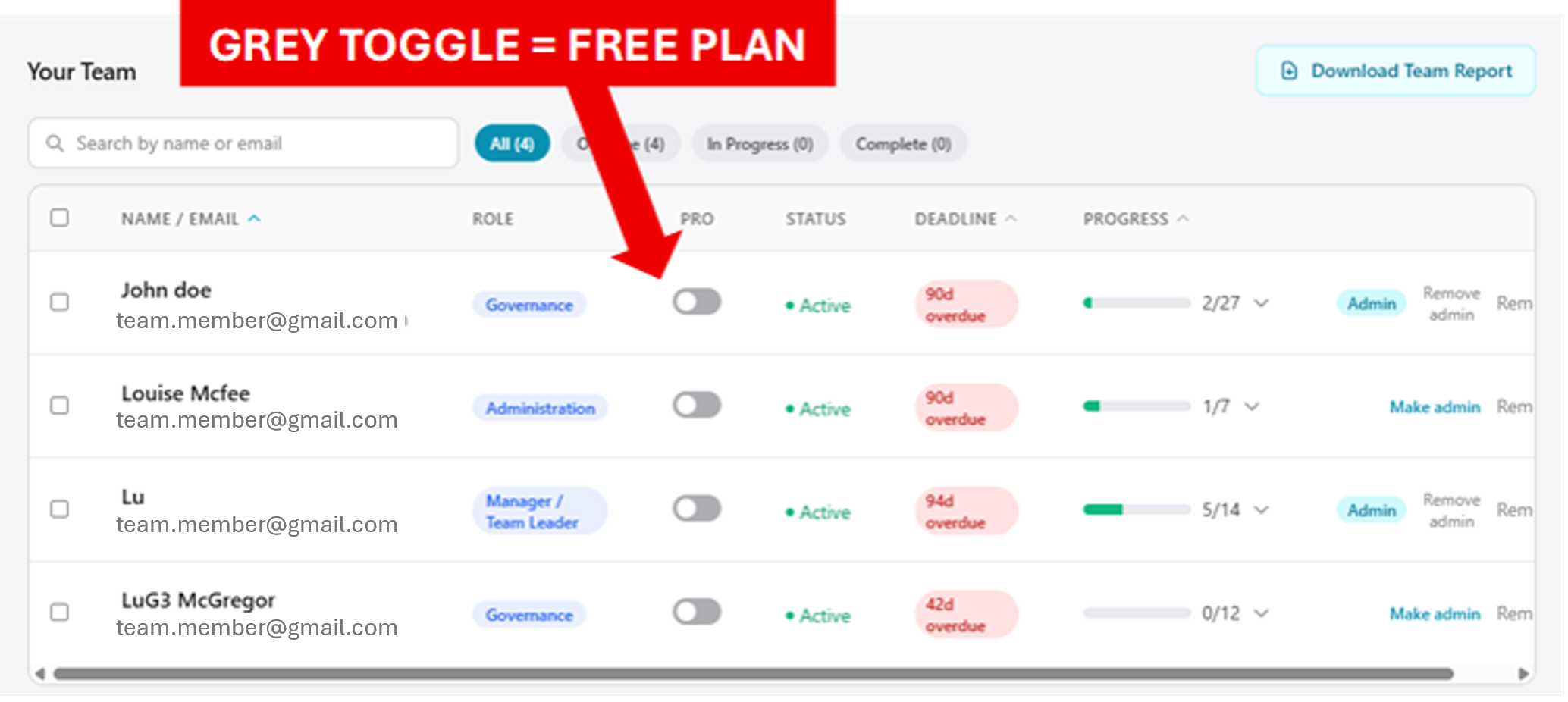
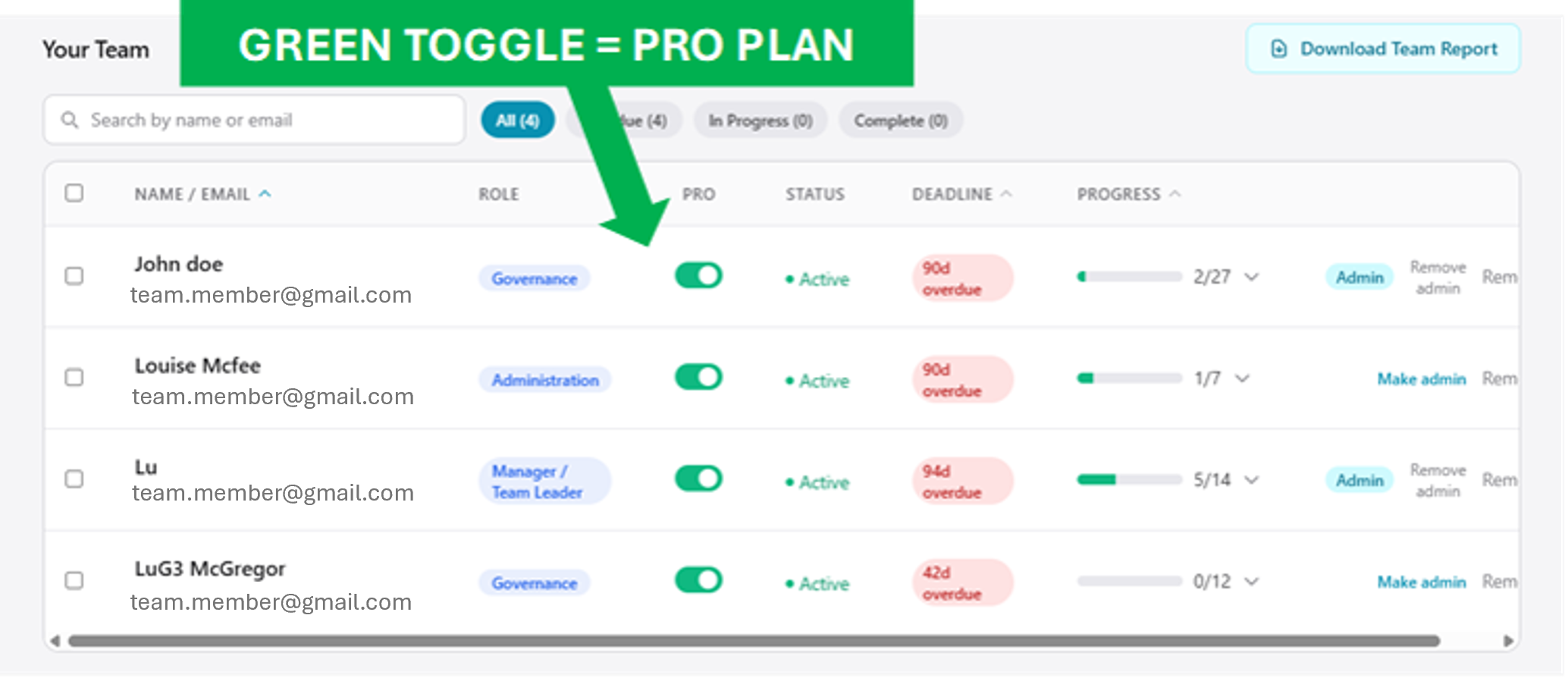
This is deliberate: some organisations may only want to purchase Pro for a subset of their team (Board members, Managers, specialists). Others want everyone to access Pro. The toggle makes that decision explicit.
If your team members are asking "why can't I access the full library yet?" — the most likely reason is they haven't been toggled on.
Step 1 — Open the Team dashboard
Click Team in the header.
Look at your staff table. You'll see a new Pro column with a toggle for each person. Grey = Free (StartSmart only). Green = Pro seat assigned (full library + assignments).

Step 2 — Toggle on the people who need Pro
Click the toggle next to each person you want on Pro. The switch flips green immediately — no save button, no page reload. Their access unlocks the next time they load their dashboard.

That's it. Nothing else to do.
Thinking about going PRO?
You don't have to Pro everyone. Here are some common patterns:
- Governance Pro — Board and Trustees on Pro (they need broader legislative/governance content); the rest of the team on Free StartSmart. Common in small NFPs where the Board is doing due diligence prep.
- Management Pro — Managers and Team Leaders on Pro (they need to be across everything the team's practising); frontline staff on Free StartSmart. Common when you're evaluating Pro before rolling it out wider.
- Frontline Pro — Client Services / support workers on Pro (they benefit from the wide range of specialist content in the practice library); leadership on Free. Common when you're focusing spend on capability build for the biggest team.
- Whole team Pro — Everyone toggled on. The default when you're a mature Pro adopter.
You can change the pattern any time — toggle seats on and off as roles shift, people leave, or new hires arrive.
Buying Pro for your team?
At Stripe checkout, you'll choose a seat quantity — that's how many Pro seats you're paying for each year.
Don't be alarmed if the default number looks big. The checkout may calculate a figure based on your current team size (e.g. "your team of 15 × $25 = $375/year+GST"), but you don't have to buy that many seats — select the quantity you actually need. If you've got 15 staff but only your 3-person Board needs Pro, buy 3 seats. Mix and match Pro and Free freely on your Team dashboard.
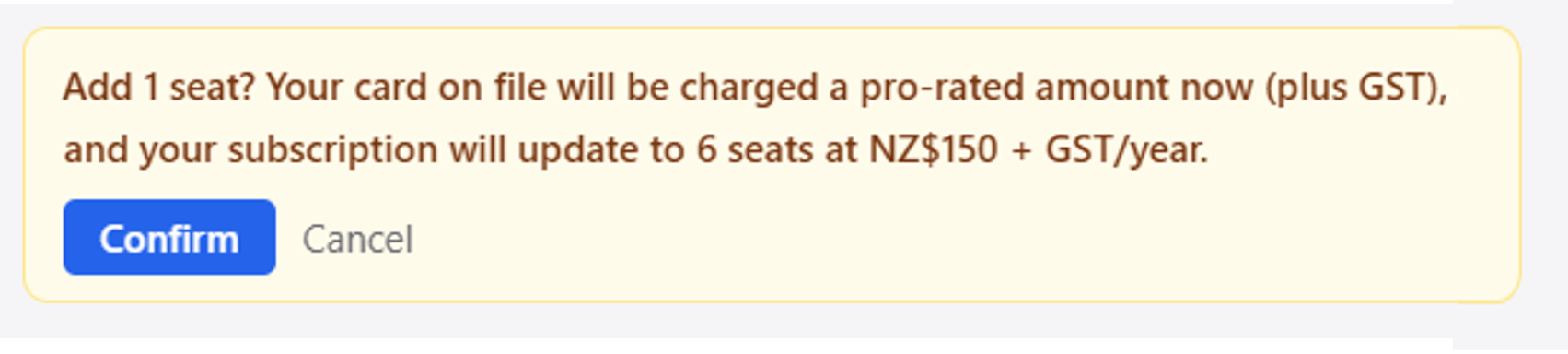
Adjusting seat count later: if you want to add or reduce Pro seats after checkout, go to Manage seats while signed in as the org admin. A seat management field will show so that you change your paid seat count.

Adding seats is billed straight away: you pay the pro-rated amount (plus GST) from today to your renewal date, and your renewal then covers the new seat count. You will have the opportunity to confirm your choice before anything is charged.
Want to change your subscription?
Your subscription is managed by Stripe. To view, or make changes to your subscription, click Manage plan.

You'll be taken to your Stripe portal where you can edit your payment and billing details and view/download your invoices.
Common gotchas
"A staff member says they can't access the Pro library, but I've got a Pro subscription." Check the Pro column on their row — if the toggle's grey, they're still on Free. Flip it green.
"I've toggled someone on but the switch bounces back to grey with an error about seats being full." You've hit your paid seat capacity. Either unassign an existing member (freeing up a seat) or buy more seats via Manage seats.
"New team members I add — do I need to toggle them on manually every time?" Yes. Every new membership lands as Free by default. Adding someone to the team is free (unlimited); giving them a Pro seat is the paid step.
"We're a Policy Place partner — do we have Pro seats?" Yes — whilst your Policy Place subscription provides a number of benefits across The Good Practice Hub (direct linking between your policy site and the Good Practice Hub, Monthly review practices, a discounted rate for PracticeLab Pro (depending on your plan)) it does not include PracticeLab PRO membership by default.
"I unticked someone by mistake." No harm done — flip it back on. The toggle is instant and doesn't affect any evidence or history they've built.