
Welcome to Pro. Your Team dashboard has three new capabilities — Pro seats, quiz assignment, and Team Capability Insights.
This guide walks you through each one and what you'd typically do in your first week.
Pro seats — who on your team gets the paid features
Not every team member needs the full Pro experience. Your Board members might only need their StartSmart quizzes; your frontline staff might need the full library. That's what Pro seat toggles are for.
You'll see a new Pro column on your staff table with a toggle for each person. Your team will all start on the Free StartSmart plan:
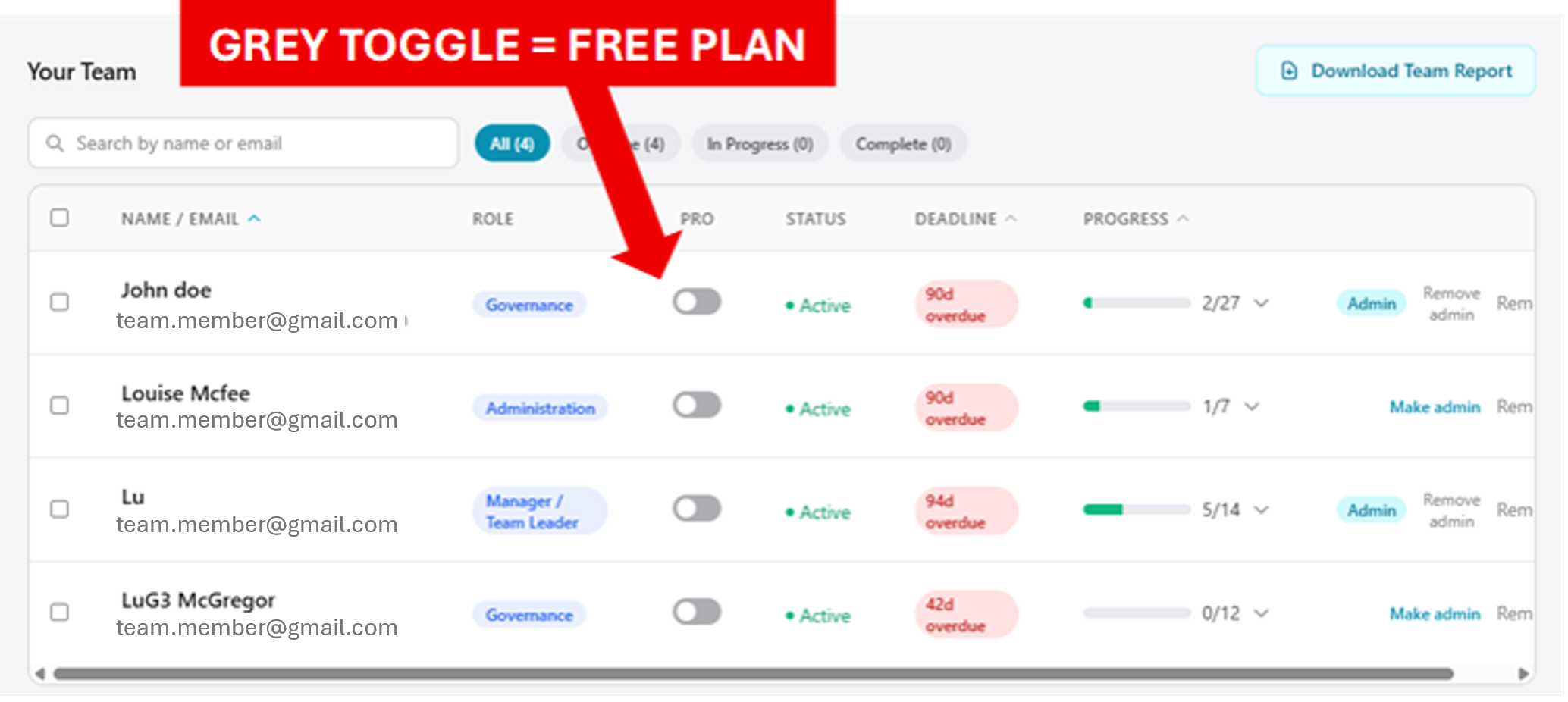
You'll need to toggle them green to access their PracticeLab Pro features:
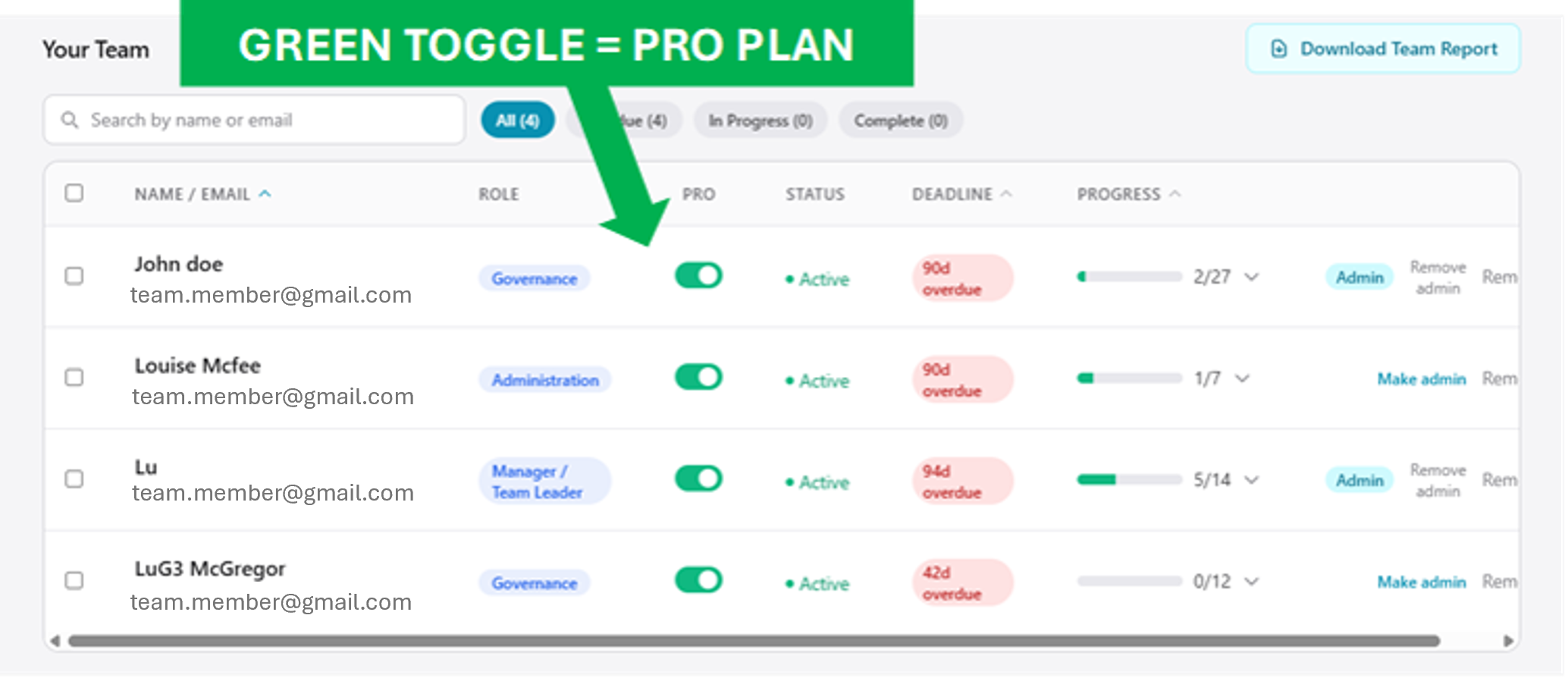
What a Pro seat unlocks for that person:
- The full practice library, not just their StartSmart Induction kit
- Any quizzes or coaching scenarios you assign to them
- Their completions feed into your evidence reports
- Their passing rates feed into your Team Capability Insights
Toggle seats on or off:
Toggle seats on and off any time — when someone leaves, their seat frees up for a new hire. Your billing quantity updates automatically.

Assigning quizzes and scenarios to your team
Sometimes you need to say "everyone practise Feedback and Complaints this month" or "just the Managers, work through Managing Performance". That's what quiz assignment is for.
Step 1 — Select the people
Tick the checkboxes at the start of each staff row.
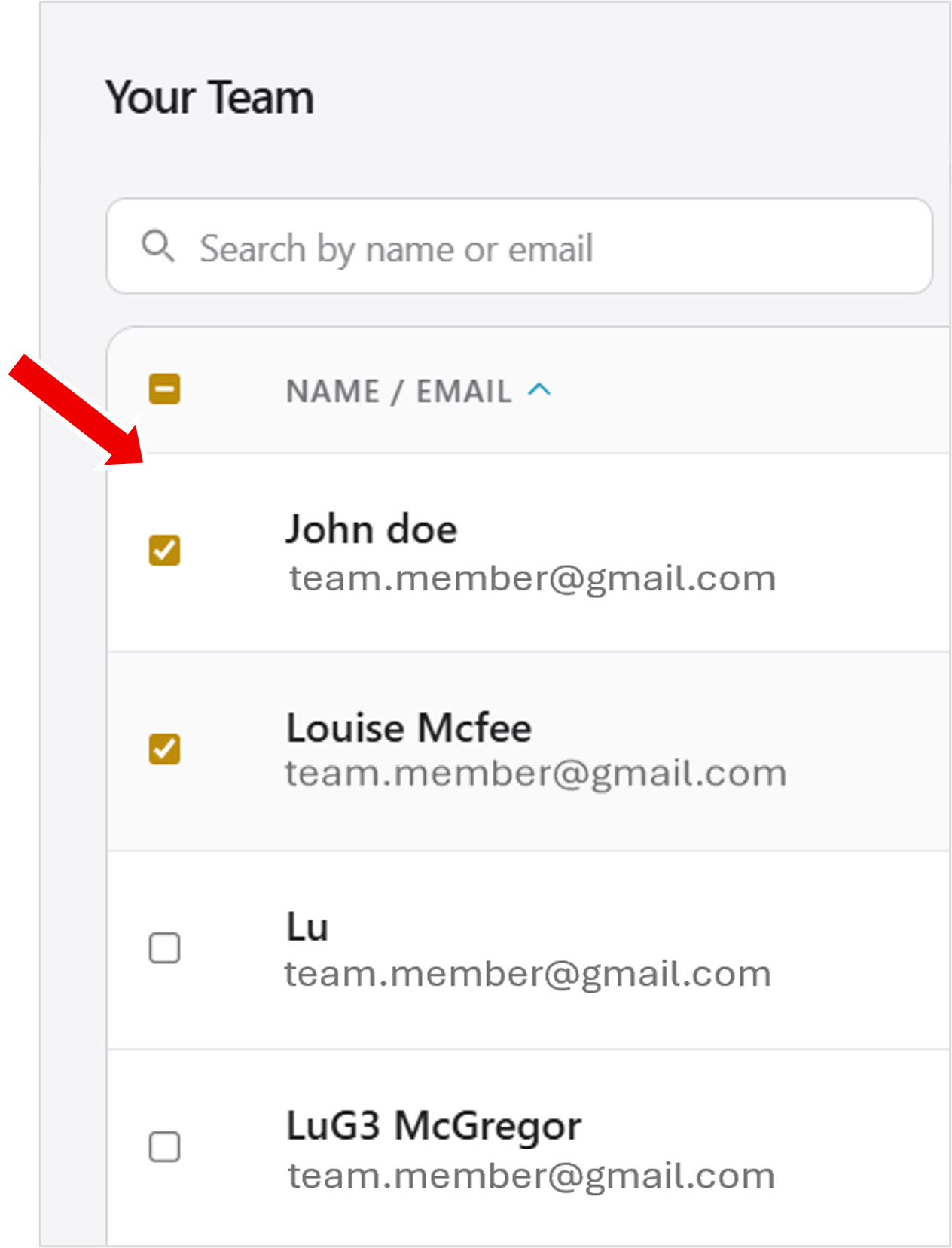
A cyan bar appears at the top saying "N staff selected" with an Assign quizzes button.

Step 2 — Pick what to assign
The modal opens with your full library — practice quizzes and coaching scenarios, Free StartSmart content first, then Pro. Use the search box to find something specific.
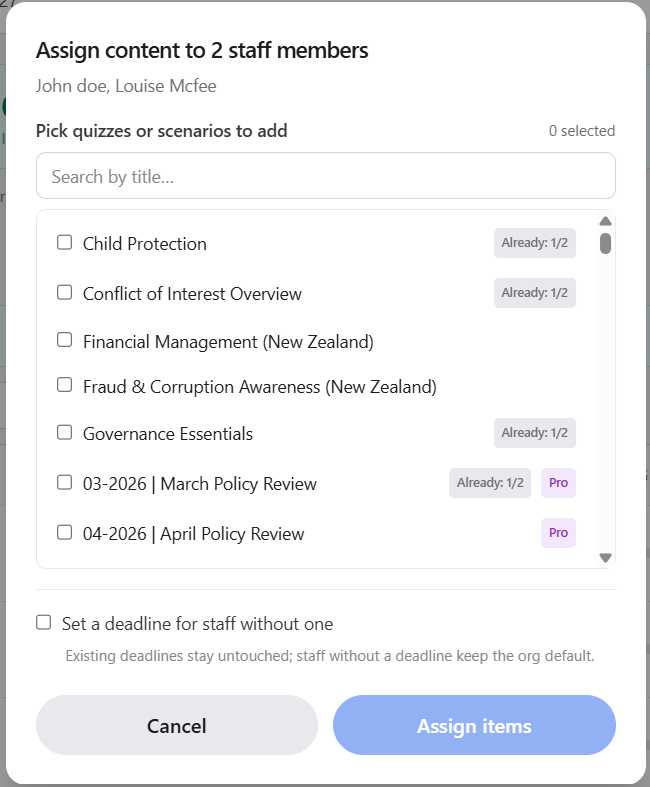
The modal shows you which items your selected staff already have, so you can avoid double-assigning.
Step 3 — Set a deadline (optional)
Tick Set deadline if you want a specific due date. Leave it off and the assignment sits open-ended.
Step 4 — Assign
Click Assign. The selected staff get an email letting them know they've got new practice waiting, and the assignments appear on their PracticeLab dashboard when they next sign in.
Team Capability Insights — where's the team strong, where's it stretched
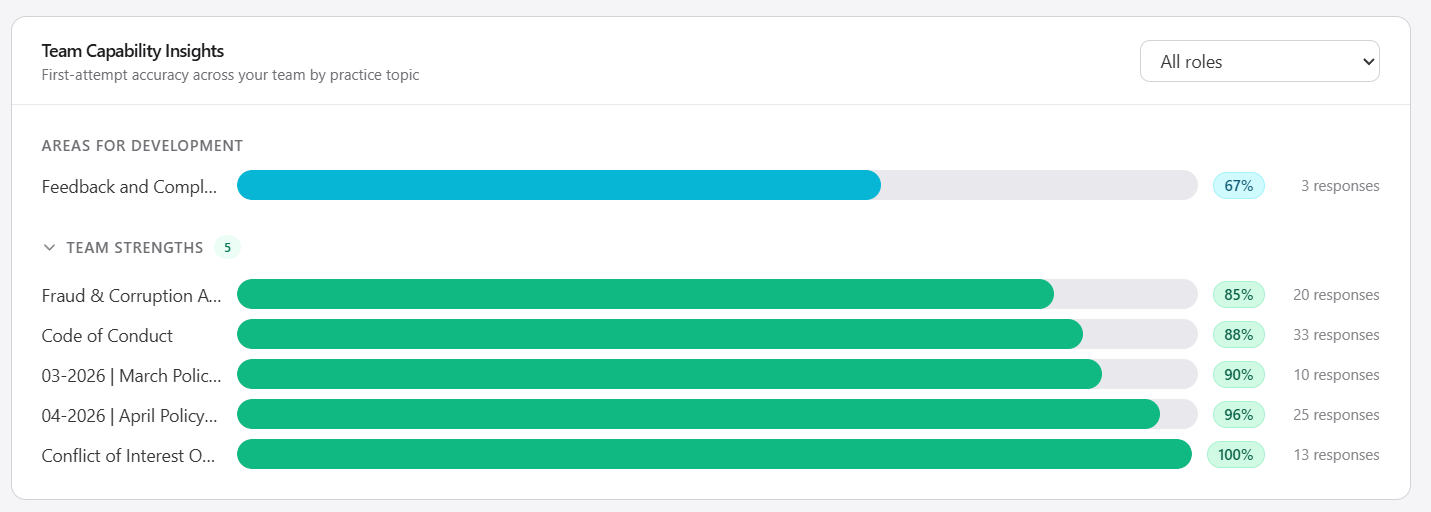
Scroll below your staff table for the Team Capability Insights widget. It shows first-attempt accuracy across every practice topic your team's worked through, split into two sections:
- Areas for Development (topics under 70%) — where your team's most stretched. These are the natural first place to focus new assignments.
- Team Strengths (topics 70% and above, collapsed by default) — where your team's already solid. Reassuring for reports; not usually where you'd assign new practice.
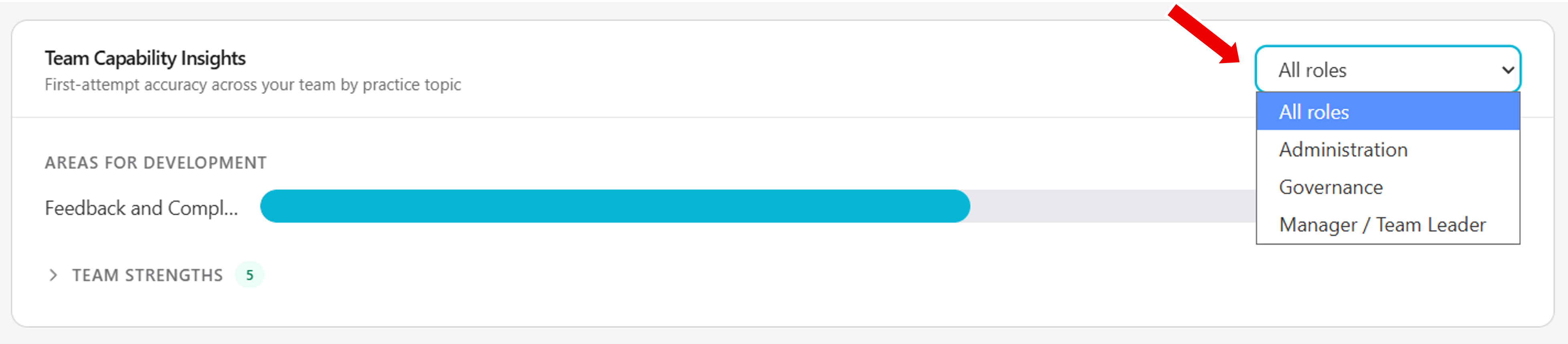
Use the role filter (top-right) to switch between "All roles" and any specific role — so you can see whether e.g. your Managers are strong on Governance concepts, or your Client Services team is stretched on Privacy.
How to use it:
- Weekly: skim Areas for Development. If a topic's under 60%, that's a nudge to assign the relevant quiz to the affected role.
- Hone specific training: look for different ways to build team knowledge in Areas for Development, then re-practice to document evidence of improvement.
- Before Board reports: expand Team Strengths to name the areas where your team's clearly competent.
- New starter: check whether their role shows any specific low areas — tells you what to assign first.
What to do in your first week on Pro
- Assign Pro seats to the team members who need the full library
- Look at Team Capability Insights to see where your team's naturally stretched
- Assign one focused quiz to your most-stretched role — a small win to establish the assignment habit
- Assign a coaching scenario to discuss at a team meeting
- Download the Team Report at the end of the week to see what's shifted
Common gotchas
"I've upgraded but the Pro column isn't showing." Refresh your dashboard — the tier check sometimes needs a page reload after a fresh subscription.
"Team Capability Insights says my team needs to complete more quizzes." The widget needs a critical mass of first-attempt responses before it can show meaningful patterns. As your team practises through their kits, topics will populate. Usually takes 2–3 weeks with a team of 8+.
"The Assign quizzes button isn't appearing when I tick people." Make sure the people you've ticked have Pro seats (green toggle in the Pro column). Assignments only apply to Pro seat holders — for Free seat members, they can still work through their StartSmart kit.