Setting up teams and team leaders (PRO PLAN)
Group your people by site, service or shift, look at one team at a time, and give each team a leader with a Team page of their own.
5 min read

Once your organisation grows past a handful of people, one long staff list gets hard to read. Teams let you group your people by site, service or shift, such as Housing, Night shift or Whānau Support. You can then look at one group at a time: their progress, their reports, where they're strong. You can also name a Team Leader for each team, who gets a Team page of their own.
Teams are part of PracticeLab Pro.
Before you start
You'll need:
- To be an admin for your organisation, on PracticeLab Pro
- A rough idea of how your people group together. Each person sits in one team, and you can change it any time.
- Five minutes
Step 1 — Create your teams
On your Team dashboard, look above the staff table, beside the All / Overdue / In Progress / Complete filters. Click + Create teams.

A Teams box opens. Type a team name, for example Night shift, and click Add team. Repeat for each team.
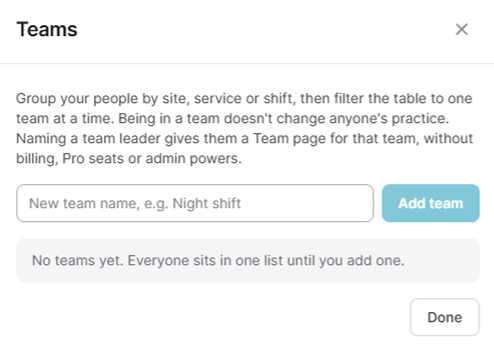
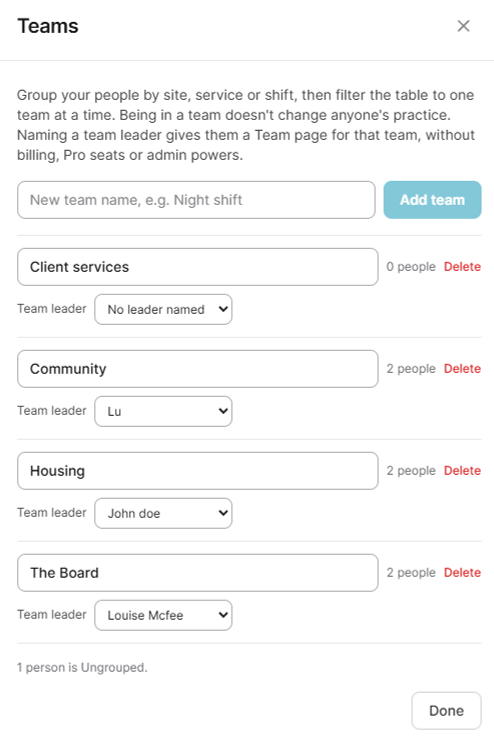
Set up your teams and click Done when you've finished. From now on, the same button reads Manage teams.
Step 2 — Put people in their teams
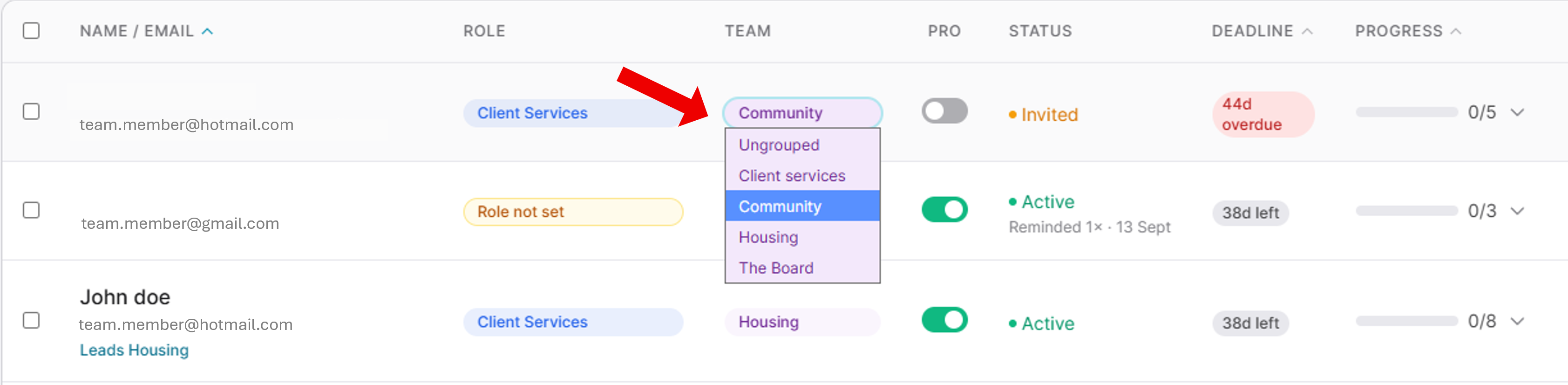
A new Team column appears in your staff table. Everyone starts as Ungrouped. Click the pill in anyone's Team column and choose their team from the list. It saves straight away.
You can also use the ⋮ menu at the end of a row and choose Move to team…. That box has a + New team… option, handy if you realise mid-sort that you need another team.
New people can go straight into a team when you add them. Add Staff now has a Team choice, and in Bulk paste it's Team for everyone in this paste.
Step 3 — Name a Team Leader (optional)
Open Manage teams. Under each team there's a Team leader dropdown. Pick the person who leads that team.
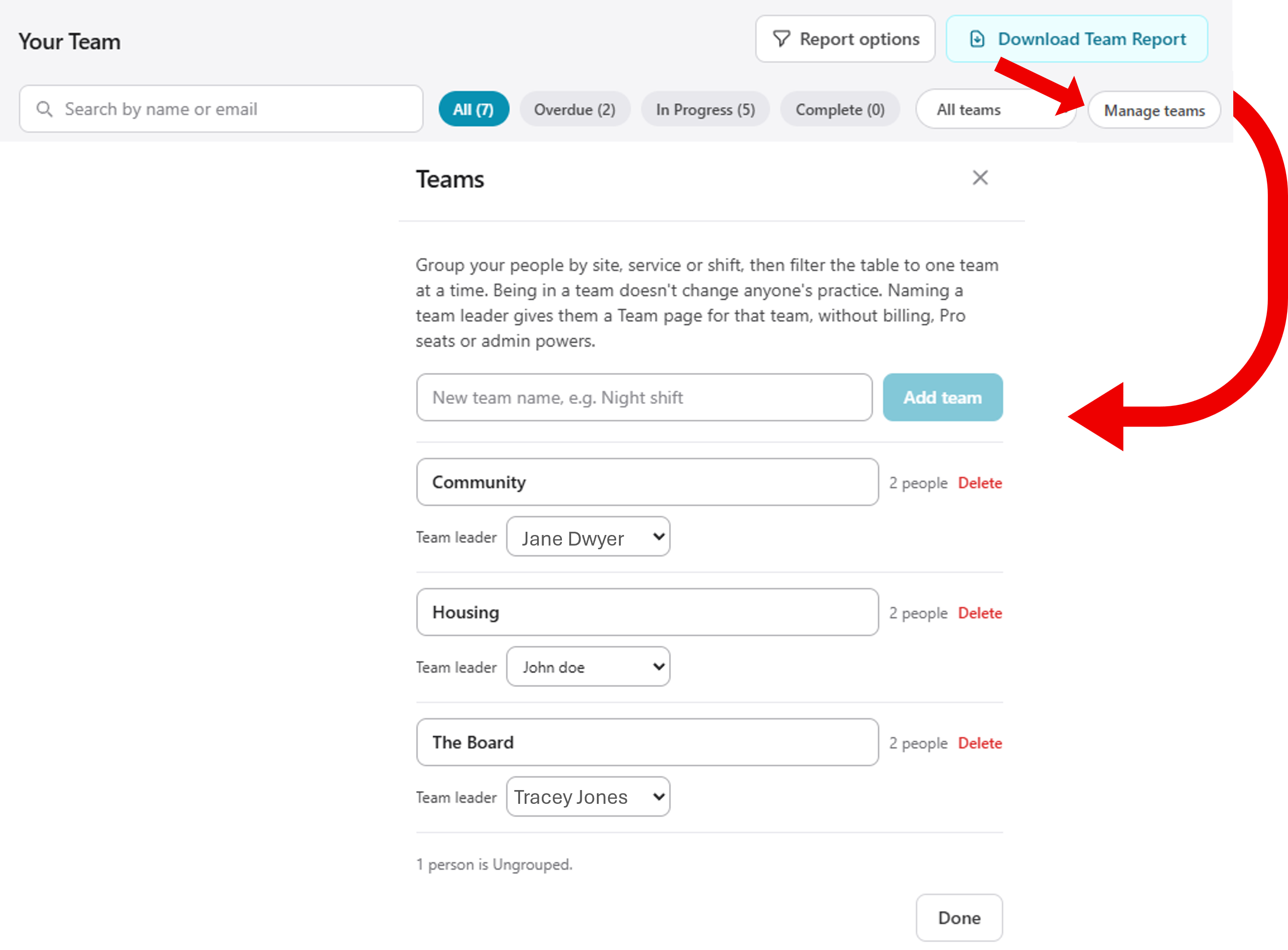
Before it saves, you'll be asked to confirm, because naming a leader gives them access. A Team Leader can:
- See their team's practice, progress and Capability Insights
- Add people to their team and remove people from it
- Change a team member's staff role
- Assign quizzes and send reminders
- Download their team's Team Report (and Policy Review evidence, if you're a Policy Place member)
A Team Leader can't touch billing or Pro seats, make anyone an admin, or create, rename or delete teams. They also can't act on an admin, another leader, or themselves.
We email the leader to let them know, with a link to their Team page. Their name in your staff table then shows Leads Night shift underneath it.
Your leader doesn't need to be an admin. That's the point: they get their own team without the keys to the whole organisation. There's a guide you can forward to them: Your Team page as a Team Leader.
Using your teams day to day
Filter the table to one team. A Team filter now sits beside the status filters. Pick a team, and the table and the counts show only that team.
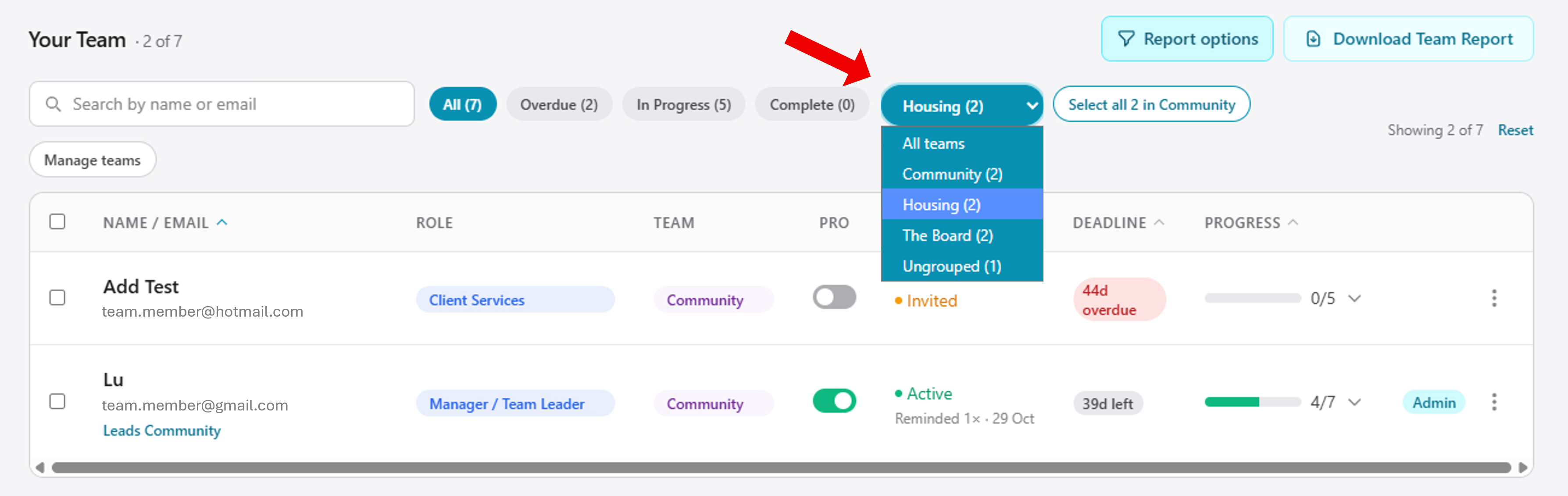
Act on a whole team at once. With a team picked, click **Select all N in Team to tick everyone in it. Then use Assign quizzes or Send reminder** in the bar that appears.
Report on one team. Click Report options. Under Who, pick the team, or under Group by, choose Team to get everyone sorted into their teams in one PDF. See Downloading your evidence for your funder (PRO PLAN).
See where each team is strong. Team Capability Insights, below the staff table, has a team filter. It works alongside the role filter, so you can look at, say, just the Managers in Housing.
Policy Reviews by team (Policy Place members). The Policy Reviews section has its own team filter. The counts, the staff list and the Evidence PDF all follow it.
Renaming or deleting a team
Open Manage teams. To rename, change the name and click Save name. To delete, click Delete. Anyone in that team goes back to Ungrouped. Nobody is removed from your organisation, and no practice or evidence is lost.
Common gotchas
"I can't see + Create teams." You'll see a grey Teams · Pro label instead. Teams are part of PracticeLab Pro.
"Can someone be in two teams?" Not at the moment. Each person sits in one team. A Team Leader can lead more than one team.
"I removed someone and now they're not in any team." That's by design. Removing a person clears their team, and if you add them back later they start as Ungrouped.
"Does a team change what someone practises?" No. Teams are for sorting and reporting. Each person's practice still comes from their role and anything you've assigned.
"What happens to our teams if we move off Pro?" They're kept, but hidden. If you come back to Pro, your teams are still there.