Your Team page as a Team Leader
You've been named Team Leader. Here's your Team page: what you can see, what you can do, and what stays with your admin.
4 min read

Your organisation has named you Team Leader for your team. That gives you your own Team page: one place to see how your people are going with their practice, bring new people in, and pull your team's evidence when you need it.
This guide is for you as the leader. Your admin may have sent it on.
Getting there
You'll have had an email titled "You're now leading [your team] on Good Practice Hub". Click Open your Team page in that email.
Any other time: sign in to Good Practice Hub and click Team in the header.

Your Team page is headed with your team's name. Underneath, it says "[Your organisation] · you lead this team".
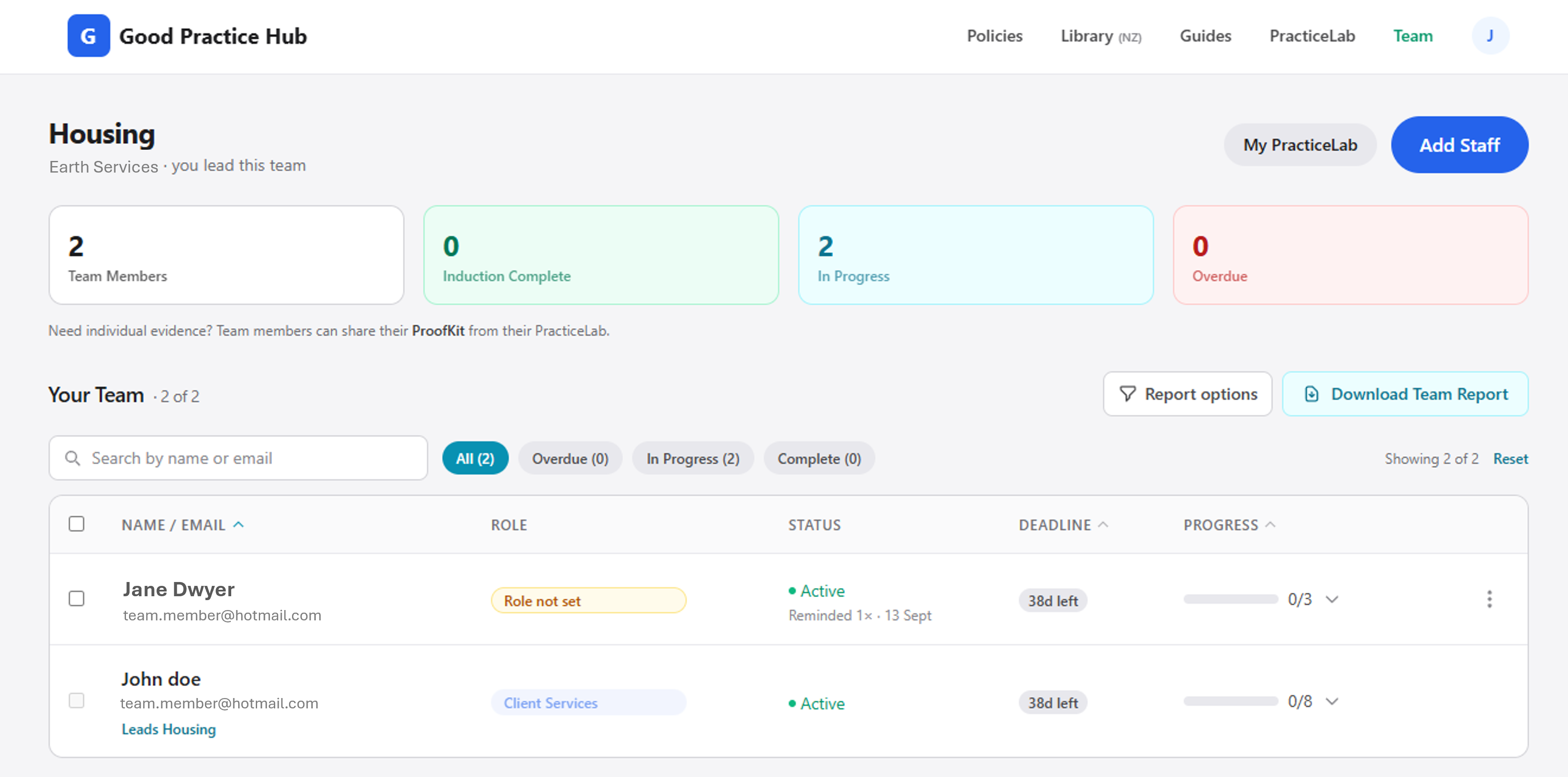
Your own practice hasn't moved. My PracticeLab, top right, takes you back to it.
What you'll see
- The numbers across the top: Team Members, Induction Complete, In Progress, Overdue. These cover your team only.
- Your team's staff table. Click the arrow in anyone's Progress column to see what they've finished and when.
- Team Capability Insights, below the table, shows where your team is strong and where it's stretched, by practice topic.
- Policy Reviews, if your organisation is a Policy Place member.
If you lead more than one team, you'll also get a Team column and a team filter, so you can look at one team at a time.
What you can do
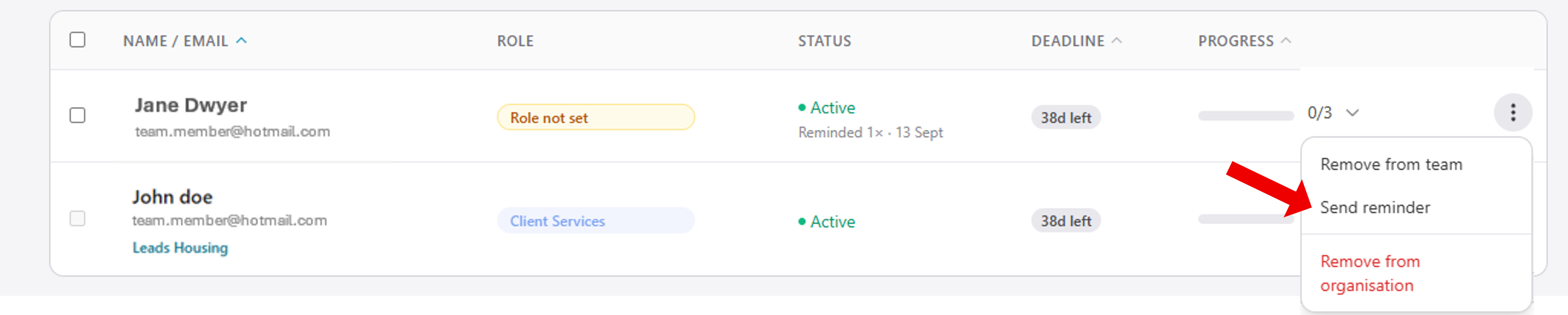
Everything below is in the ⋮ menu at the end of a person's row, or the Add Staff button, top right.
Bring someone new into your team. Click Add Staff. They're added straight into your team. You can add one at a time or use Bulk paste for a list. See Inviting your first team.

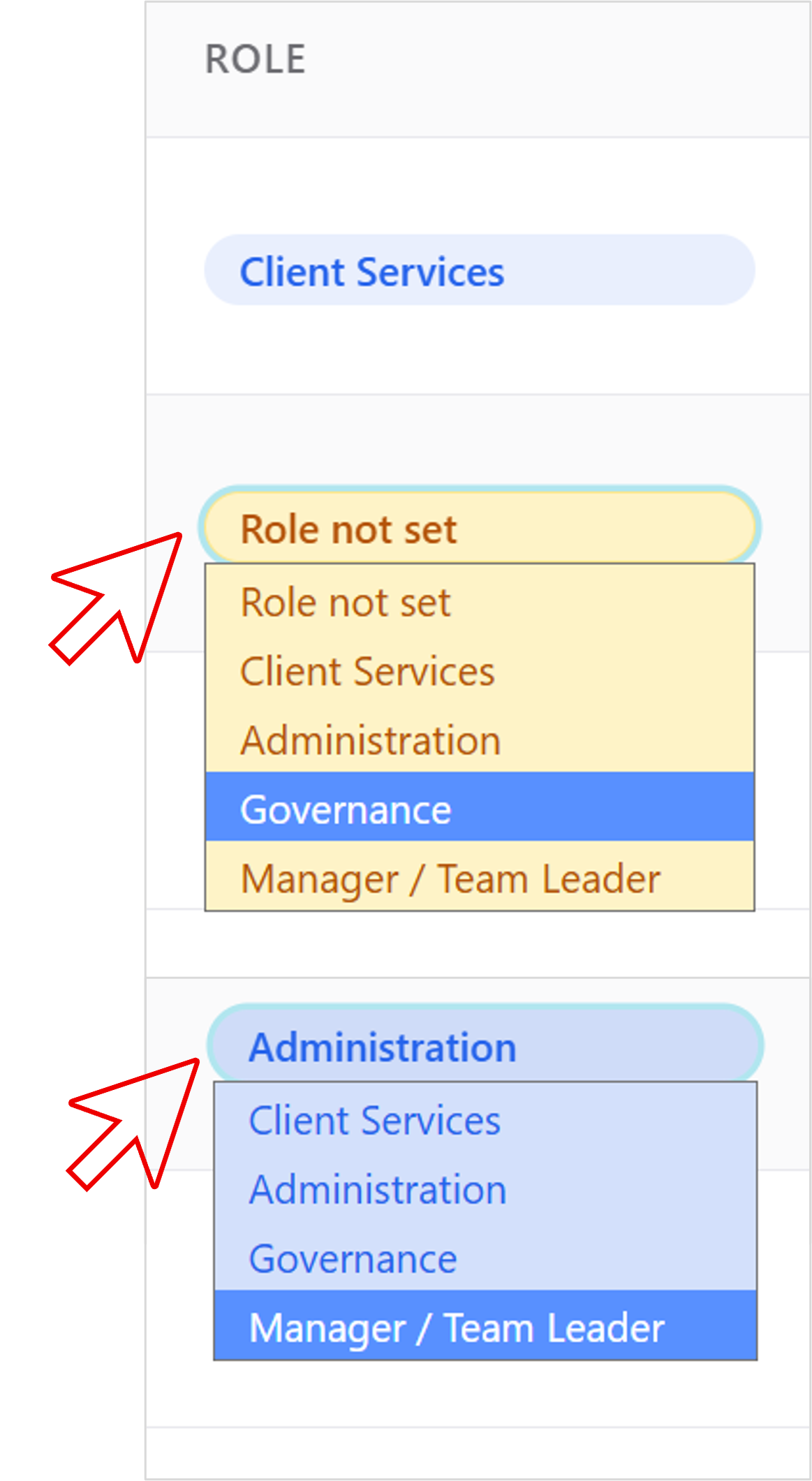
Fix someone's role. Click the role pill in their row, for example Client Services, and choose the right one. Their induction kit follows the role.
Nudge someone. Use Send reminder for people who've signed in but haven't finished, or Resend invite for people who haven't signed in yet. See Nudging staff who haven't finished.
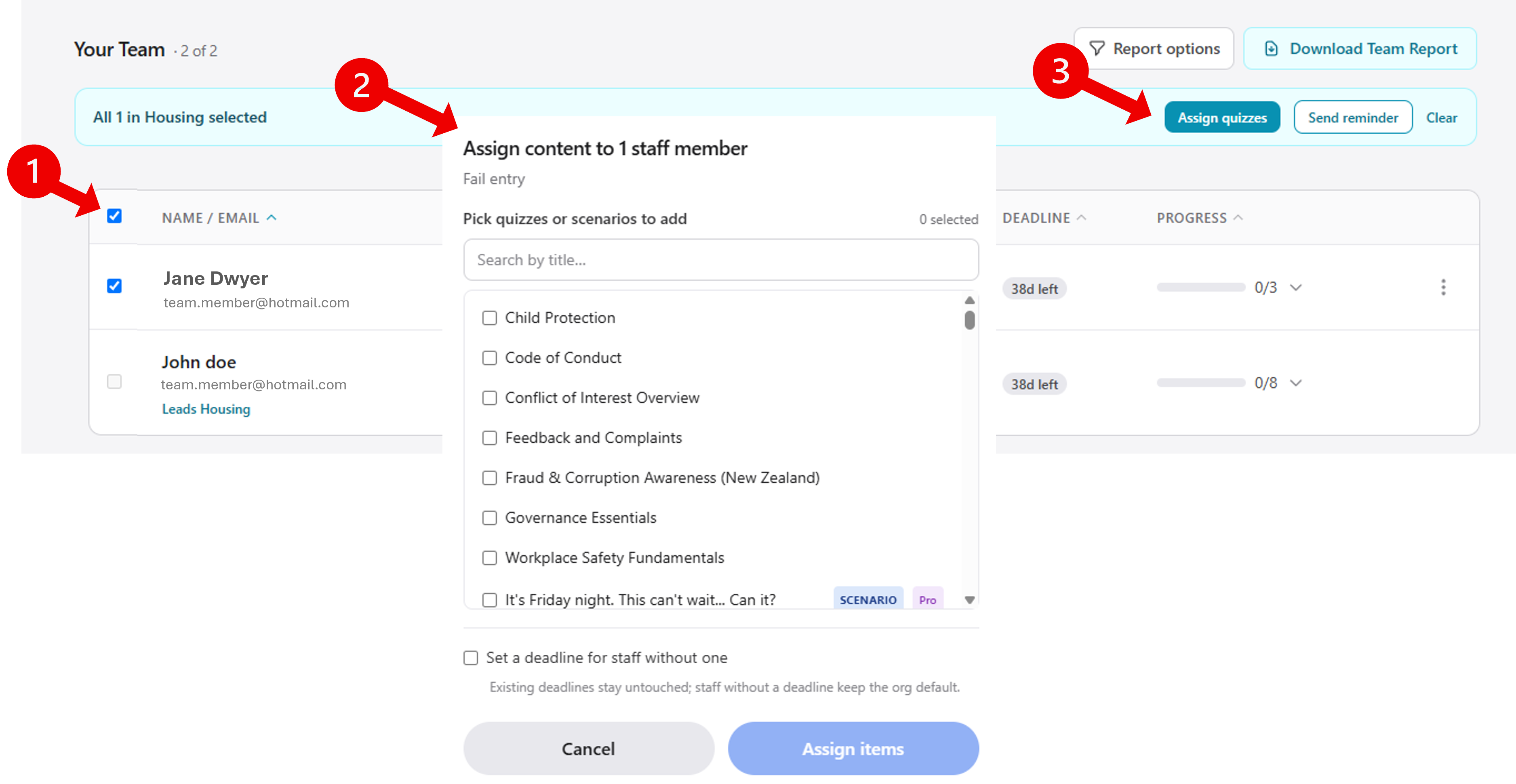
Give your team some practice. Tick the people, or everyone, then click Assign quizzes in the bar that appears. Good for a team-meeting topic. If some of your people don't have a Pro seat, Pro practice is skipped for them. Ask your admin about seats.
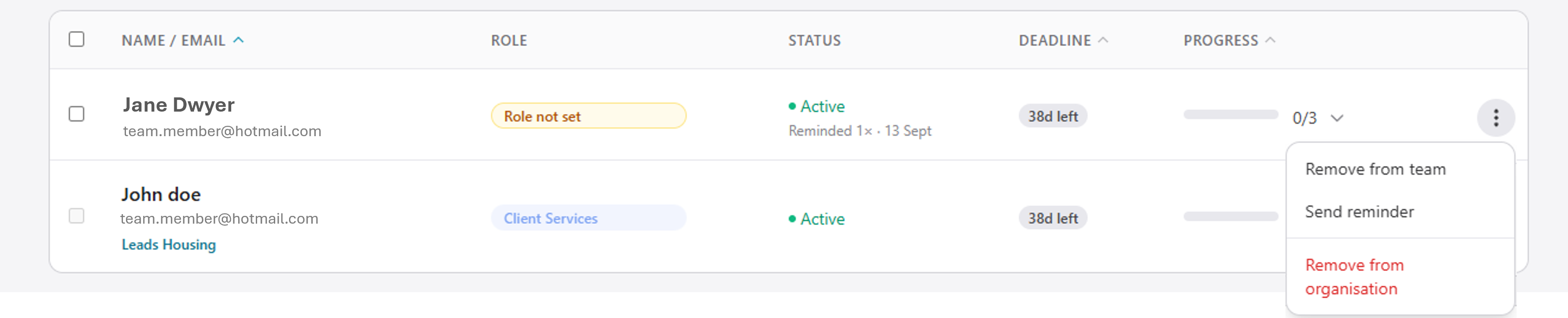
Someone's moved to another team. Choose Remove from team. They stay in your organisation, marked Ungrouped, and your admin places them in their new team. If you lead more than one team, use Move to team… instead.
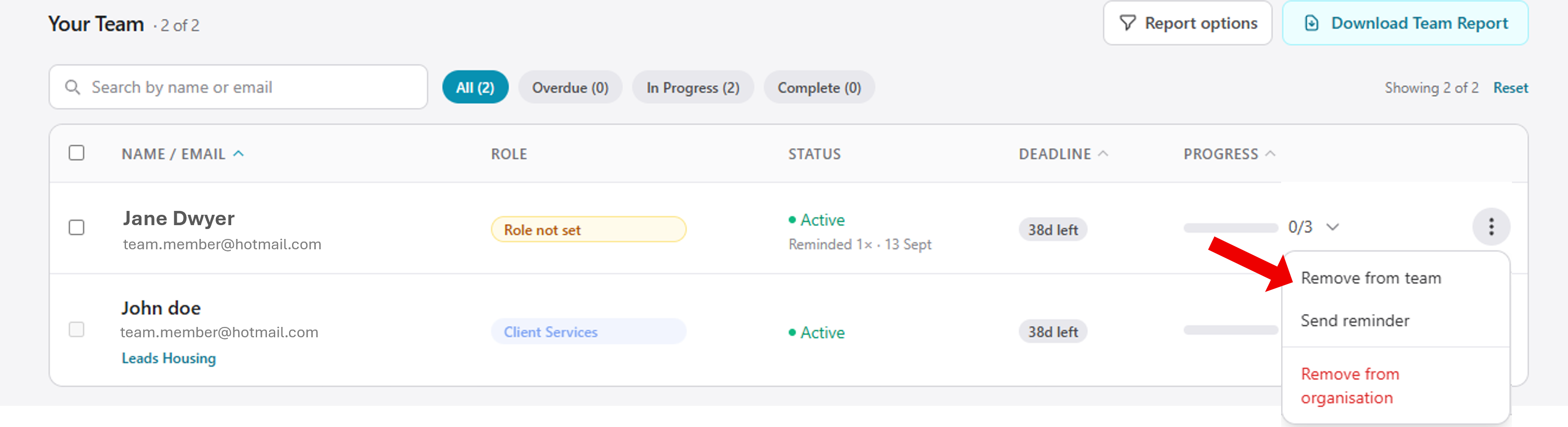
Someone's left the organisation. Choose Remove from organisation. Their own account and the evidence they've built stay theirs. Your admin will see that you removed them.
Download your team's evidence. Click Download Team Report. To narrow it to a date range or to completed practice only, click Report options first. See Downloading your evidence for your funder (PRO PLAN).
What stays with your admin
Billing, Pro seats, making someone an admin, and creating or renaming teams all stay with your organisation's administrators. You also can't change anything for an admin, another team leader, or yourself. Their rows have no ⋮ menu, and their tick box is greyed out.
Common gotchas
"I can't see the Team link." If you were already signed in when you were named leader, give it about five minutes and refresh the page, or sign out and back in. If you belong to more than one organisation, check that the organisation switcher in the header is showing the one that named you.
"Someone in my team is missing from my page." They may still be Ungrouped. Your admin places people into teams, so ask them to move the person into yours.
"I can't assign Pro quizzes to someone." They don't have a Pro seat. Only your admin can give one.